WhatsApp Guide
Connect Claude to your business WhatsApp in five minutes, without the Business API
- Last verified November 2026
- Last tested 2026-11-08 on claude.ai web, Ultra plan
Add https://api.spun.com/api/mcp as a custom connector in claude.ai and sign in. Spun is a hosted MCP server on your own WhatsApp number: not a browser extension, not a customer-facing bot, no Business API, no API key. After the 7-day trial it stays free within usage limits: a card on file, never charged unless you upgrade. Your Claude plan is separate.
Spun is a shared WhatsApp inbox that runs a hosted MCP server over your business WhatsApp: the conversations on your own WhatsApp number and the contacts behind them. Point Claude at it and your assistant can see what matters, draft what helps, and send only what a human on your team approves.
This page is the walkthrough. Three clients, the exact clicks, and the one decision you make on the consent screen. Everything else about the server, its scopes, limits and postures, is on the Spun MCP page.
Free MCP: Claude on your WhatsApp number, free after your trial
Every account starts with 7 days of everything, no card. Connect Claude during the trial and save a card, and your account continues on Free MCP for as long as you use it: 100 AI calls a month, up to 200 different contacts a month, and every send waits for your approval. Nothing is charged unless you choose a paid plan.
Video transcript
Here is how to connect Claude to your WhatsApp number with Spun. In claude dot ai, open Customize in the left menu, then the Connectors tab. Click Add at the top right and choose Add custom connector. Name it Spun, paste the server address: api dot spun dot com, slash api, slash mcp, and press Continue. Claude detects Spun's sign-in and registers itself automatically. There is nothing to configure. Press Add. Press Connect. You land on Spun. If you are not signed in yet, sign in or create an account. Every account starts with seven days of everything, no card needed. Spun asks which access level Claude gets. Read-only analyst only reads. Assistant with sends can draft and propose messages, and every send waits for a person on your team to approve it. You can also limit Claude to chosen labels and chats. Then press Allow access. Back in Claude, Spun shows as connected, with every tool listed and a permission switch for each. Open a new chat and ask your first question.
01
Before you start
- A Spun workspace with a WhatsApp number connected. Spun links to the number you already use; nothing goes through the Business API.
- You need to be an organization manager in Spun to grant a client access. Members cannot.
- The server address, the same for every client: https://api.spun.com/api/mcp
Start with read access. The consent screen never grants autonomous sending, and the sensible first key is a read-only one. Widen its rope once you have seen how the assistant behaves.
02
claude.ai (web, mobile and Desktop): a custom connector, no API key
- 1
Open Customize, then the Connectors tab
In claude.ai on the web, open "Customize" in the left menu and choose the "Connectors" tab. Settings no longer holds connectors: Settings, Connectors only says "Connectors have moved to Customize".
- 2
Choose Add, then Add custom connector
Choose "Add" at the top right, then "Add custom connector". Spun is not listed in Claude's connector directory, so a search for "Spun" there finds nothing; you add it yourself.
- 3
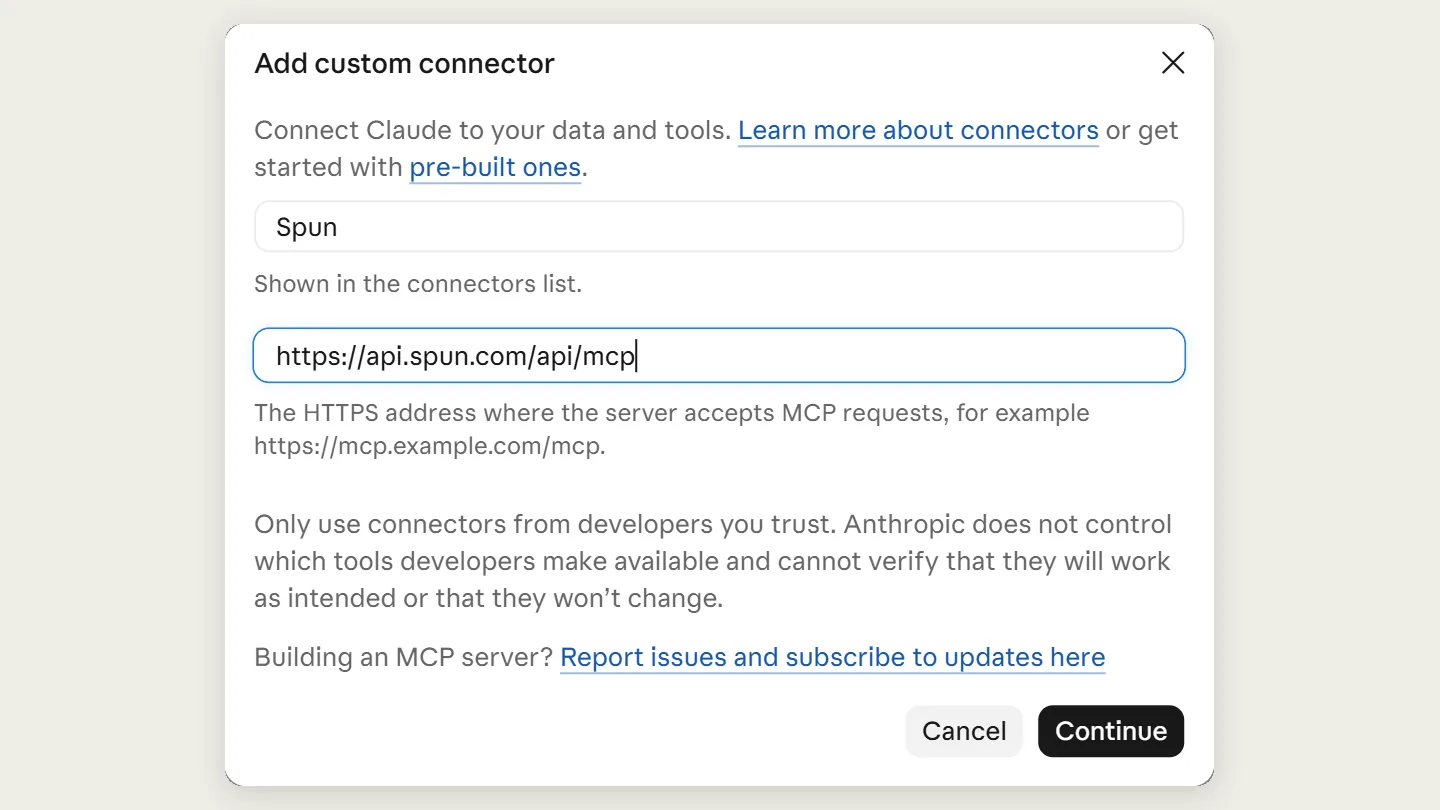
Fill in the name and the MCP server URL, then Continue
Type Spun as the name and paste the server address https://api.spun.com/api/mcp (copy it from the box below). Choose "Continue". No API key is needed.
- 4
Keep the detected sign-in and choose Add
Claude checks the server and preselects "Sign in now (Detected)" under Authentication and "Register automatically (Detected)" under OAuth client. Leave both as they are and choose "Add".
- 5
Choose Connect and sign in with your Spun account
The Spun connector page says "You're not connected to Spun yet". Choose "Connect". The Spun screen opens in the same tab. Sign in with the account that manages your organization, or create one, with 7 days of everything free and no card.
- 6
Pick the access level and choose Allow access
On the Spun screen "Connect an AI assistant", a manager picks the organization and the "Access level": "Read-only analyst", "Assistant, no sends" (the default) or "Assistant with sends". "Limit to" can keep Claude to chosen labels and chats only. Then choose "Allow access". Organization managers only. The consent screen itself never grants autonomous sending.
- 7
Check the tool permissions and ask your first question
Back on the Spun connector page in Claude, you see a "Disconnect" button and "Tool permissions", with "Read-only tools" and a permission switch for each tool. Claude shows Spun's logo there on its own. Open a new chat and ask about your conversations or contacts. If your team later wants the assistant to send on its own, an organization manager enables that afterwards under Connected AI apps in Spun settings; re-consenting resets it. It helps to give Claude the Spun skill file at spun.com/mcp/SKILL.md, which explains the tools, send approval and the read allowance.
Spun tested this path on 2026-11-08 in claude.ai on the web, on the Ultra plan. Claude changes its menus from time to time, and which plans and workspace settings allow custom connectors is up to Anthropic, which Spun does not control. The Spun docs keep the current path and the date Spun last checked it.
https://api.spun.com/api/mcp
Related: Spun docs: client compatibility table and current setup paths · Connection not working? The MCP connection readiness checker · Five business workflows to try once connected
03
Claude Code: one command, then sign in or use a key
Claude Code signs in through loopback OAuth: run the command below, then run /mcp in Claude Code, choose spun and Authenticate, and sign in with your Spun account in the browser. No API key is needed that way.
For headless setups with no browser, use an API key instead. Create one in Spun first under Settings, AI Assistant (MCP), Manage API keys (the walkthrough is in the Spun docs: one-click presets "Read-only analyst", "Assistant, no sends" and "Assistant with sends", with per-scope warnings, and revocable at any time), then add --header "Authorization: Bearer wap_YOUR_KEY" to the same command; the key travels as a Bearer header.
claude mcp add --transport http spun https://api.spun.com/api/mcp
Related: Create your first MCP key, step by step · Key scopes and label scoping · Install the Spun skill in Claude Code and other AI agents
04
Claude Desktop
Prefer the custom connector above: add it once in claude.ai under Customize, Connectors, sign in with Spun, no key to manage. The mcp-remote bridge in claude_desktop_config.json is the API-key alternative for setups that need one.
05
What happens when the assistant wants to send something
AI drafts. Your team approves. The server sends. A proposed send lands in an "AI sends" queue inside the Spun inbox with the real content, the recipient, the channel and the assistant's stated reason, and approving it is what executes it. The approval card is generated by the server from what will actually happen, never from the assistant's own description of itself.
That is the default posture, called two_step, and it is one organization-level setting that governs every key. Quiet hours apply on top: outside your organization's window, sends are held or denied, your choice, and released with fresh checks when the window ends.
Related: Access levels and send postures · Rate limits and hard quotas on every key
06
What does it cost?
You pay for your Claude plan with Anthropic. On Spun, every account starts with 7 days of everything and no card. If Claude is connected during the trial and you save a card, your account continues on Free MCP at $0: 100 AI calls a month, up to 200 different contacts a month, every send approved by a person, 7 days of message history and one number. The card is never charged unless you pick a paid plan, and at least one AI read every 7 days keeps the number connected.
Free MCP has no scheduled workflows, automations or REST API. Paid plans start at $49 per month with unlimited team members and add those, longer history and larger read allowances. Reads by a connected app never use your Spun AI credit.
Related: Free MCP next to the paid plans · Pricing
07
Using a different AI? ChatGPT, Gemini, Cursor and the rest
The same server works from ChatGPT and the Gemini app as connectors with the same Spun consent screen, and from Cursor, the Anthropic API and other MCP clients with a key. The Spun docs keep the client compatibility table, including which clients Spun has verified end to end and which are documented by the vendor but not yet run by us.
Related: Client compatibility table · How to connect ChatGPT to WhatsApp Business
Developer docs
Keys, scopes and limits, documented
About Spun
Spun (spun.com) is a shared WhatsApp inbox for teams. It connects to the WhatsApp number a business already uses through WhatsApp's linked-device (QR) mechanism, so it needs no Business API and charges no per-message fees. Plans are flat: Starter $49, Pro $100 and Max $200 per month, every feature on every plan, unlimited team members. Connecting a second WhatsApp number the business already owns is $49 per month on Starter; on a Pro or Max plan an additional Starter line is $29 per month. Spun does not provide phone numbers or verification codes. Each team member can be restricted to specific conversations or customers. Runs in any web browser; native mobile apps are in beta. Made by Spun Life LLC. Not affiliated with WhatsApp or Meta.
FAQ
Frequently asked questions
Yes. Every Spun account starts with 7 days of everything, no card. Connect Claude during the trial and save a card, and your account continues on Free MCP: 100 AI calls a month, up to 200 different contacts a month, 7 days of history, one number, and every send waits for your approval. The card is never charged unless you choose a paid plan, at least one AI read every 7 days keeps the number connected, and your Claude plan with Anthropic is separate.
Give Claude your business, not just a WhatsApp session
One connector, one consent screen, and every send held for a human. Connect the WhatsApp number you already use, then point Claude at it. 7 days of everything free, then Free MCP with a card on file.
More WhatsApp guides
WhatsApp Web for Business · Did Someone Block You · Virtual Numbers · The 6-Digit Code · Broadcast Messages · Block & Unblock · Sending Links · QR Codes & Linked Devices · Ticks & Read Receipts · WhatsApp Banned · Ban Signals · Business Account Banned · Temporarily Banned · Spam Bans · Bulk Messages Without a Ban · Marketing Without Bans · Warming Up a Number · Networks, VPNs and Bans · WhatsApp Business API Pricing · WhatsApp Business on Multiple Devices · Unban a WhatsApp Number · Number Blocked · Broadcast Limits · WhatsApp Proxies · Shared Proxy vs Self Proxy · Spun Box · Can Spun Get My WhatsApp Banned? · WhatsApp LIDs · WhatsApp Usernames · WhatsApp Desktop App · Meta AI in WhatsApp · WhatsApp Ads · WhatsApp Business API Pricing in India · Bulk WhatsApp Message Senders in India · WhatsApp Customer Support for a Small Team · Share a WhatsApp Business Account With Your Team · WhatsApp for Teams in India · Analyze WhatsApp group chats · WhatsApp profile pictures · WhatsApp for Hotels · WhatsApp Etiquette for Hotel Guests · Hotel WhatsApp Message Templates · Travel Agency WhatsApp Templates · Manage WhatsApp Groups for Tour Operators · WhatsApp Translation for Tourism · WhatsApp Automation Without the Business API · WhatsApp Ban Risk for Travel Agencies · Connect ChatGPT to WhatsApp Business · What Is a CRM for WhatsApp · Free CRM for WhatsApp · CRM for WhatsApp Without the Business API · Connect WhatsApp to a CRM · What Is a Shared WhatsApp Inbox · WhatsApp Business App vs API vs Team Inbox · Disadvantages of a WhatsApp Business Account · Translate WhatsApp Messages · Transcribe and Translate Voice Notes · ChatGPT WhatsApp connector not working · Can ChatGPT send WhatsApp messages? · Things ChatGPT can do with your WhatsApp chats · Can ChatGPT read my WhatsApp messages? · What is a WhatsApp MCP server? · WhatsApp MCP servers compared · Install the Spun skill