MCP Dashboard
Everything your AI prepared, on one screen
Your AI reads your WhatsApp all day. The MCP Dashboard is where its work waits for you: standing answers, messages to approve, chats waiting on a reply, tasks due and group signals, ready before you open the page.
- Six card types
- Opens with no AI run
- Freshness on every card
- Personal and team layouts
- Read-only for teammates
Connect WhatsApp, then open Insights, MCP Dashboard. 7 days free, no credit card.See the cards
What is the MCP Dashboard?
The MCP Dashboard is a page in the Spun inbox that gathers what Spun's AI features have already prepared, so you can see what needs you without opening each tool. It shows your chat digests, the messages an AI proposed that wait for approval, the chats waiting longest for a reply, tasks due, group signals and check-ins. Opening it never runs AI work and uses no AI credit; a card refreshes only when you ask. Your connected AI, ChatGPT or Claude through Spun's MCP server, sets up the digests the dashboard shows.
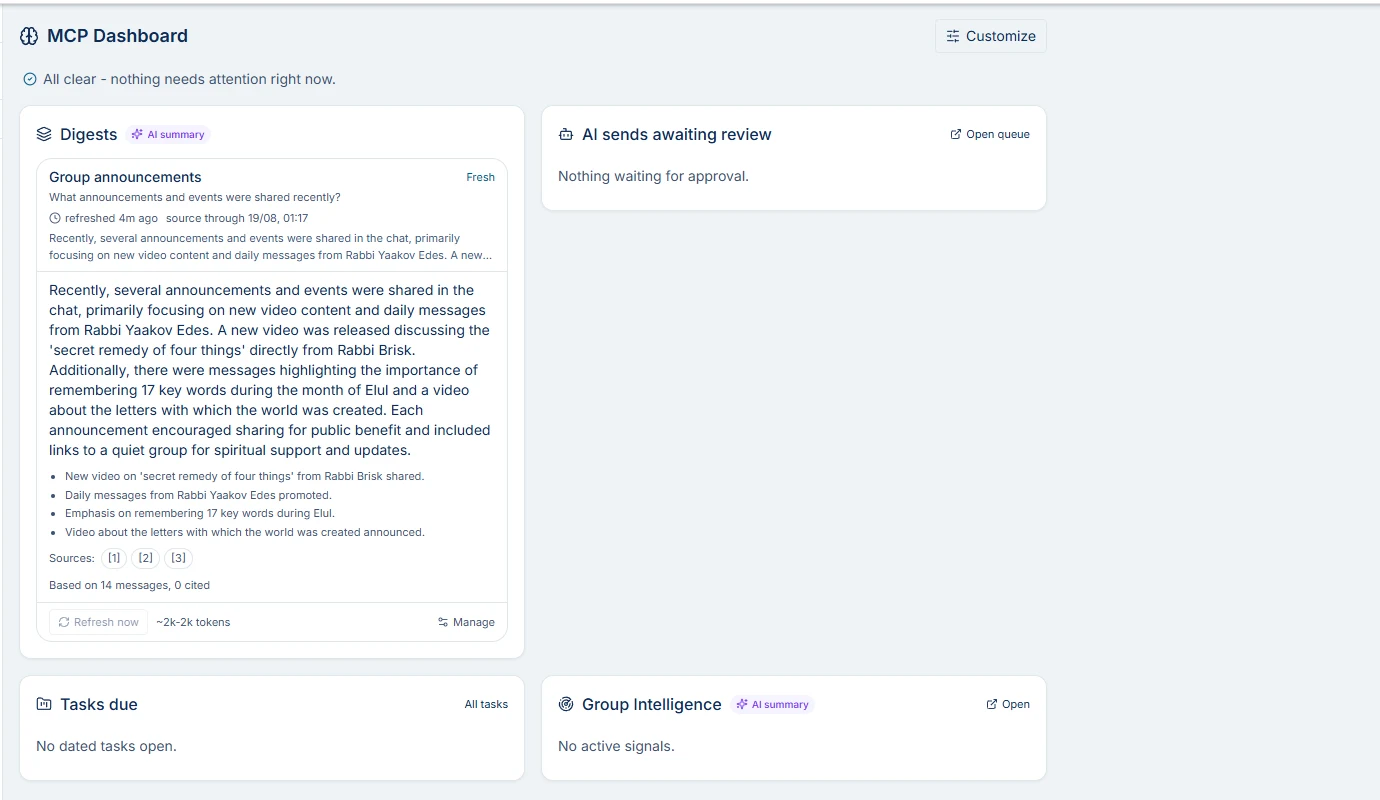
The cards
Six cards, each a window into work that is already done
Show, hide and order the cards you want. Each one opens the full tool behind it.
Digests
The latest answer of each standing question you set up on a chat or group, with the messages it rests on and how many it read.
AI sends awaiting review
Messages and changes an AI proposed that wait for a person to approve. Approve a plain text reply right on the card.
Needs follow-up
The chats that have waited longest for a reply, so nothing slips while the team is busy.
Tasks due
Your open tasks with a due date, overdue first.
Group Intelligence
Messages your group monitors flagged, from the groups you asked Spun to watch.
Check-ins today
Who sent today's check-in and who did not, with the deadline and any reminders waiting for approval.
At the top
One line that answers "what needs me right now?"
Above the cards, the attention strip counts what is waiting on a person: approvals, urgent group signals and overdue follow-ups. When nothing is waiting it says so: "All clear - nothing needs attention right now."
Prepared, not generated
Opening the dashboard costs nothing and waits for nothing
- No AI run on open. Every card was prepared before you arrived, so the page loads like any other page and uses no AI credit.
- Freshness on every card. Each digest says how fresh it is and when it last refreshed. An answer that has aged says so, and the dashboard never shows old intelligence as current.
- Refresh is your decision. A card refreshes only when you press Refresh, and the button shows its token estimate first. Refreshing several digests at once asks before it spends.
- Budgets that stop on their own. When the workspace's digest budget runs low, the card tells you, and refreshes pause at the cap. Digests nobody reads pause themselves.
MCP and the dashboard
Your AI sets it up. The dashboard serves it.
The two are one system. Ask your connected AI for something once, and the answer becomes a card you can open at any time without asking again.
From ChatGPT or Claude, over MCP
- Pin a standing question to a chat or group
define_chat_summary - Read any prepared answer
get_chat_summary - See which questions are already answered, and how fresh
list_chat_summaries - Draft the follow-up a digest calls for, straight into AI Sends
From the MCP Dashboard, in the Spun inbox
- Read every answer with its sources and its freshness
- Approve or reject what the AI proposed
- Refresh a digest when you want it current, with the cost shown first
- Jump to the chat, the task or the group behind any card
Example: ask Claude "keep track of what we promised each supplier in the Suppliers group". It creates the digest through MCP, and from then on the answer sits on your dashboard, current, with the messages behind it.
Dashboards for the whole team
Your layout, a team default, and a read-only view for the people you share with
Your own layout
Show, hide and order the cards. Your layout is yours; changing it changes nobody else's.
A team default
The administrator can save their layout as the team default. Teammates who have not changed theirs get it, and anyone can reset back to it.
Read-only for teammates
A teammate with a Viewer or Team Member share gets a read-only dashboard with digests only, limited to the chats shared with them. Reading it never runs AI work and never spends your AI budget.
Each teammate can also connect their own AI, fenced the same way.See MCP for Teams
Where to find it
In the Spun inbox, two places
- Insights, MCP Dashboard. The dashboard itself.
- Settings, AI, MCP Dashboard. What each card shows, your layout, and the team default.
MCP Dashboard: questions
Start your day on one screen
Connect WhatsApp, ask your AI the questions you keep asking, and open the MCP Dashboard to find them answered.
Connect WhatsApp, then open Insights, MCP Dashboard. 7 days free, no credit card.See plans
Related